
Quick Reference Table
| Feature | Details |
| Tool Name | Automatic Replies (Out of Office) |
| Works On | Windows, Mac, Web, iOS, Android |
| Account Types Supported | Microsoft 365, Exchange, Outlook.com |
| POP/IMAP Support? | No native support — Rules workaround needed |
| Internal + External Messages? | Yes — two separate messages possible |
| Schedule Start/End Time? | Yes — fully optional |
| Cost | Free with any Outlook/Microsoft 365 account |
| Teams Integration? | Yes — syncs automatically |
| Mobile Support? | Full support on iOS and Android |
| Server-Side? | Yes — works even when your PC is off |
Why This Little Feature Matters More Than You Think
You book a week off. You are genuinely excited. You have not taken real time off in months.
Then someone emails you on day two of your vacation. They expect an answer. They wait. They send another. They think you are ignoring them.
You come back to a pile of frustration — from people who had no idea you were gone.
That is exactly the mess an out-of-office message prevents. Setting it up takes two minutes. And it saves you from so much awkwardness when you return.
The feature is called Automatic Replies in Outlook. Most people have heard of it. Fewer actually know how to use it properly across all their devices.
This guide covers every version — Windows, Mac, web browser, iPhone, Android — and gives you the full picture, including what to do if yours is not working.
See also “Maryland Judiciary Case: The Complete Plain-English Guide (2026)“
First, what version of Outlook are you using?
This is the question almost nobody asks before they go searching for the setting. And it is the reason so many people end up confused.
There are several versions of Outlook floating around right now. The steps are slightly different for each one.
Here is how to figure out which you have:
- New Outlook for Windows — Look at the top-right corner of your screen. If you see a cog/gear icon up there, that is the new version.
- Classic Outlook for Windows — If you see a ribbon-style toolbar across the top with tabs like “File,” “Home,” and “Send/Receive,” you are on the classic version.
- Outlook for Mac — If you are on a Mac and updated after October 2025, you are almost certainly on New Outlook. Legacy Mac Outlook stopped working fully for Microsoft 365 in 2026.
- Outlook on the Web — This is when you log in through a browser at outlook.office.com. No app needed.
- Outlook Mobile — The app on your phone, available for both iPhone and Android.
Knowing which version you have saves you at least five minutes of clicking around in the wrong menus.
Setting Up Out of Office on New Outlook for Windows
This is the version most people are using as of 2025 and 2026.
Here is how to do it:
- Open Outlook on your computer.
- Click the View tab in the menu bar at the top.
- Select View Settings — it looks like a gear icon.
- In the panel that opens, click Accounts.
- Then click Automatic Replies.
- Flip the toggle to turn it on.
- Tick the box that says Send replies only during a time period if you want it to turn off automatically.
- Pick your start date and end date. Be careful with times — if you are leaving at noon Friday, set it to noon, not midnight.
- Type your message in the box.
- Press Save.
That last step matters. A lot of people set everything up perfectly and then walk away — forgetting to press Save. The message just sits there, silent, doing nothing. Do not skip it.
Setting Up Out of Office on Classic Outlook for Windows
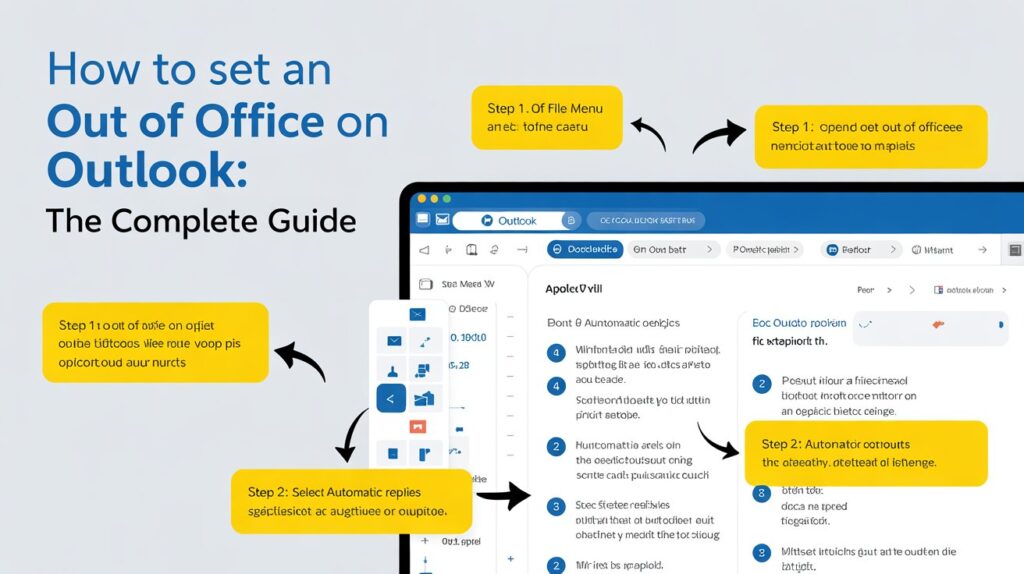
If you are still on the older version with the File menu at the top left, the path is different.
- Open Outlook.
- Click File in the very top-left corner.
- You should see Automatic Replies (Out of Office) — click it.
- A box pops up. Choose Send automatic replies.
- Tick the box for Only send during this time range if you want a start and end date.
- Fill in your dates and times.
- Click the Inside My Organization tab and write your message for coworkers.
- Click the Outside My Organization tab and write a message for clients, suppliers, or anyone else.
- Hit OK.
If you do not see “Automatic Replies” after clicking File, keep reading. There is a reason for that, explained in the section about Gmail and IMAP accounts.
Setting Up Out of Office on Outlook for Mac
Mac users have a slightly different route.
- Open Outlook.
- In the menu bar at the very top of your screen, click Tools.
- Select Automatic Replies.
- Select “Send automatic replies for account” by checking the box.
- Write your message in the box for people inside your organization.
- If you want to set a date range, check Send replies only during this time period and enter your dates.
- If external people need to know you are away, check the option for outside senders and write a second message.
- Click OK.
One thing to know: Outlook for Mac does not support automatic replies for Gmail, Yahoo, or any other POP/IMAP accounts. It only works for Microsoft 365 and Exchange accounts.
Setting Up Out of Office on Outlook Web (Browser)
This one is handy because it works on any computer, anywhere. Even if you are at a friend’s house and suddenly realize you forgot to set it before leaving.
- Go to outlook.office.com in your browser and sign in.
- Click the gear icon at the top right of the page.
- Select Accounts, then Automatic Replies.
- Toggle on Turn on automatic replies.
- Tick the checkbox for Send replies only during a time period if you want it to auto-stop.
- Set your start and end times.
- Type your message in the text box.
- If you want external senders covered too, tick that option and write a second message.
- Click Save.
One great thing about the web version: the setting lives on the server. That means it keeps running even if your laptop is closed and turned off. You do not have to leave your computer on.
Setting Up Out of Office on Outlook Mobile (iPhone and Android)
This is the one people forget about most. And it is honestly the most useful version when you realize at the airport that you forgot to set it.
The steps are the same on iPhone and Android:
- Open the Outlook app on your phone.
- Tap your profile picture or initial in the top-left corner.
- Tap the gear icon (Settings) in the lower-left corner.
- Tap your email account (your email address shown in the list).
- Tap Automatic Replies.
- Toggle it on.
- Tick the option for a specific time period if you want it to stop on its own.
- Write your message.
- Tap the checkmark or Save button to confirm.
Done. The whole thing takes under two minutes on a phone.
Inside vs. Outside Your Organization: Why It Matters
Outlook lets you write two completely different messages. One for your coworkers inside the company. One for everyone else outside it.
This is actually a really smart feature that most people ignore.
Here is why it matters. Your colleagues already know the culture of the office. They know who to contact when you are gone. A short message works fine for them — something like “I am out until the 14th, ping Sarah for urgent things.”
But a client or a potential new customer deserves something warmer and more complete. They do not know who Sarah is. They need more context and reassurance.
Write two different messages. Just two more minutes are needed. And it looks a lot more professional on both sides.
The End Date: The Most Forgotten Setting
Here is a thing that happens to almost everyone at least once.
You set your out-of-office message. You go on holiday. You come back refreshed and ready to work. Two days later, a colleague says “Hey, why does your out-of-office still say you are on leave?”
That is what happens when you skip the end date.
If you do not set an end time, the message keeps going forever. Outlook will not stop it on its own. It will keep firing that message at every single person who emails you — days, weeks, even months after you returned.
Always set an end date. It is optional in the settings, but treat it as essential.
What If You Have Gmail or a Yahoo Account in Outlook?
This is where people run into a wall — and no one warns them ahead of time.
Only Microsoft 365, Exchange, and Outlook.com accounts are compatible with Outlook’s Automatic Replies feature.
If you added a Gmail account, a Yahoo account, or any other third-party email to Outlook, the automatic reply button will simply not appear. Or if it does, it will not do anything.
You have two options.
Option 1 — Use your email provider’s own tool. Gmail has a vacation responder built right into its settings. Yahoo does too. These tools live on the email server itself, so they work even when your computer is off. That is actually the better option for most people.
Option 2 — Use Outlook’s Rules workaround. This is more complicated. Here is the short version:
- Write your out-of-office message as a new email.
- Save it as an Outlook Template file (.oft format) using File > Save As.
- Navigate to File > Rules & Alerts.
- Create a new rule that applies to all incoming messages.
- Set the action to reply using that saved template.
- Save and activate the rule.
There is a big catch with this method. Your computer and Outlook must stay running the entire time you are away. The moment you close Outlook or shut the computer down, the auto-replies stop.
For most people, Option 1 is far less hassle.
How to Block Your Calendar at the Same Time
Setting up your email reply is just half the job. There is another piece people forget.
Your calendar.
While your email replies tell people you are gone, your calendar tells them not to book meetings with you. These are two separate things. You need both.
Here is how to block your calendar in Outlook:
- Open your Outlook Calendar.
- Create a new event.
- Give it a title like “Out of Office” or “Annual Leave.”
- Set it to cover the full period you will be away.
- Under Show As, change it to Out of Office (not Busy).
- Save it.
When this is set up correctly, anyone who tries to invite you to a meeting during that time will instantly see that you are unavailable.
In the New Outlook, there is also an option inside the Automatic Replies settings that blocks your calendar automatically when you turn on your reply. Look for the checkbox that says Block my calendar for this period. Turn that on and it does both jobs at once.
How to Turn It Off When You Return
This sounds obvious. But it catches people out all the time.
New Outlook and Outlook Web: Go back to View > View Settings > Accounts > Automatic Replies and flip the toggle off.
Classic Outlook: A yellow banner appears under your ribbon while the reply is active. It says your automatic replies are on. Just click Turn Off right there.
Outlook Mac: Tools > Automatic Replies > uncheck the box > OK.
Outlook Mobile: Settings > your account > Automatic Replies > toggle off.
If you set an end date when you first turned it on, this happens automatically. One more reason to always set that end date.
What to Write in Your Out-of-Office Message
The message itself matters. A boring or vague message leaves people feeling uncertain.
A good out-of-office message includes four things:
- That you are away — obvious, but be direct about it
- When you will be back — give the exact return date, not “soon” or “shortly”
- Who to contact in an emergency — a name and email is far more helpful than nothing
- Whether you will have any email access — people appreciate knowing if you will check occasionally or not at all
Here is an example that covers all four:
“Hi, thanks for your message. I am out of the office from [date] to [date] and will not have regular access to email. Please contact [Name] at [email] if you have any urgent matters. I will reply to everything else when I return on [date]. Thank you for your patience.”
Keep it short. Keep it warm. No need to write an essay.
One quick tip: do not include your personal travel plans or mention where you are going. Saying “I am in Bali until the 20th” is friendly, but it also tells strangers your home is empty. Keep that detail for trusted colleagues only.
Syncing with Microsoft Teams
If your company uses Microsoft Teams alongside Outlook, there is one more thing worth knowing.
When you set your out-of-office in Outlook, it automatically syncs to Teams. Your status in Teams will update to show you are away. Anyone who tries to message you in Teams will see your out-of-office note too.
You can also set it from Teams directly. Click your profile picture at the top right in Teams > select Set status message > click Schedule out of office at the bottom > turn it on and write your message. This will push the setting to your Outlook as well.
Both tools talk to each other. Set it in one place, and it covers both.
Common Problems and Quick Fixes
The Automatic Replies option is not there. You are probably using a Gmail or IMAP account. See the section above about the workaround.
I set it up but no one is getting the reply. Check the end date first. If it already passed, the system shut itself off. Also check that you actually pressed Save.
The reply is going to junk mail senders. You can limit external replies to your contacts only. Look for the option labeled “Send replies only to my contacts” under the Outside My Organization settings.
It stopped working halfway through my trip. Make sure your mailbox is not full. A full mailbox can block automatic replies from going out.
The time zone is wrong and replies are firing at odd hours. Your Outlook time zone settings may not match your actual location. Fix this in your account settings before you leave.
Final Words
Setting an out-of-office message is one of the most respectful things you can do before walking away from work.
It is not just about convenience. It is about telling everyone who matters — your team, your clients, your contacts — that you value their time enough to let them know.
Two minutes of setup before you leave can prevent days of frustration on both sides.
Set the message. Set the end date. Block the calendar. Enjoy your time away with zero guilt about unanswered emails sitting in your inbox.
FAQs
Q1. Can I set up the out-of-office message before my leave starts?
Yes, absolutely. When you set a start date, Outlook waits until that exact date and time before sending any replies. You can set it up days or even weeks in advance.
Q2. Will the same person receive my out-of-office reply every single time they email me?
No. Outlook is smart about this. It sends the reply only once per person for the duration your reply is active. If your boss emails you ten times while you are away, they will only receive your auto-reply once.
Q3. Does my computer need to be on for this to work?
For Exchange and Microsoft 365 accounts, no. The reply runs on Microsoft’s server, not your machine. You can shut your laptop off completely. For the Rules workaround (used with Gmail/IMAP accounts), your computer and Outlook must stay running.
Q4. What if I forget to turn it off when I come back?
It will keep running. People will keep receiving your out-of-office message even though you are sitting right there at your desk. This is why setting an end date upfront matters so much.
Q5. Can I write one message for coworkers and a different one for clients?
Yes, that is one of the best parts of the feature. The Inside My Organization tab is for colleagues. The Outside My Organization tab is for everyone else. Write them separately for a much more professional result.
Q6. I use Gmail through Outlook — why can’t I find Automatic Replies?
Outlook.com, Exchange, and Microsoft 365 accounts are the only ones that may use Automatic Replies. Gmail and other third-party accounts connected through Outlook do not get access to this feature. Use Gmail’s own vacation responder instead — it is found under Gmail Settings > General.
Q7. Can I set an out-of-office on my phone if I forgot to do it before I left?
Yes. The Outlook mobile app on both iPhone and Android has the full Automatic Replies setting. It takes less than two minutes to turn on from your phone, wherever you are.
Q8. Will my out-of-office reply go to mailing lists and newsletters?
By default, yes. If you want to avoid that, choose the option to send replies only to your contacts. This limits the auto-reply to people already in your address book.
Q9. Can I turn it on and off from the web version?
Yes. Log into outlook.office.com on any browser, go to Settings > Accounts > Automatic Replies, and toggle it on or off. It is one of the quickest ways to manage the setting remotely.
Q10. Does setting out of office in Outlook also update my Microsoft Teams status?
Yes. When your Outlook and Teams are connected through the same Microsoft 365 account, the out-of-office status syncs between both apps automatically.
Q11. What happens to emails I receive while the out-of-office is on? Do they disappear?
No. Every email you receive still lands in your inbox as normal. The automatic reply just sends a response back to the sender. You will have everything waiting for you when you return.
Q12. Can I use bold text, bullet points, or links in my out-of-office message?
Yes. There is a formatting toolbar in the message box that lets you bold text, add links, change colors, and use bullet points. You do not have to write a plain text message if you do not want to.
Q13. What is the difference between “Busy” and “Out of Office” on my Outlook calendar?
Both mark you as unavailable, but they send different signals. “Busy” means you have something scheduled but might be reachable. “Out of Office” tells everyone clearly that you are gone entirely. For a holiday or leave period, always choose “Out of Office.”
Keep creating, innovating, and inspiring with Content Ideators every day.
