
Quick Facts Table
| Topic | Details |
| What is eSIM? | A digital SIM chip already built inside your iPhone |
| First iPhone with eSIM | iPhone XR, XS, XS Max (2018) |
| US iPhones with NO physical SIM slot | iPhone 14 and newer (US models) |
| Max eSIM profiles you can store | 8 or more |
| Max eSIMs active at once | 2 |
| iOS required for Quick Transfer | iOS 16 or later |
| Setup time (average) | 5 to 10 minutes |
| Locked iPhone compatible? | No — must be carrier-unlocked |
| Works for travel? | Yes — one of its best uses |
| Compatible with dual SIM? | Yes — eSIM + physical SIM or eSIM + eSIM |
What Even Is an eSIM? Let Me Explain It Simply
Imagine a SIM card. You know that tiny little plastic chip you used to slide into your phone? Now imagine you throw that chip away and bake everything it does directly into the phone itself. That’s an eSIM.
It stands for “embedded SIM.” It lives permanently inside your iPhone. You can’t see it. You can’t touch it. But it works exactly like a regular SIM card — giving you phone calls, text messages, and mobile data.
The big difference is how you activate it. Instead of driving to a carrier store and waiting in line, you do everything from your couch. Scan a code, tap a few buttons, and you’re done.
Pretty great, right?
See also “Whoer IP: The Honest Guide to What It Is, How It Works, and Why You Should Care in 2026“
Why Would You Want an eSIM?
Let’s be honest — most people only start thinking about eSIM when they get a new phone or plan an international trip. But once you understand what it can do, you might wish you had switched sooner.
The true reasons why people adore it are as follows:
- No more fiddling with tiny SIM cards and a paperclip to open the tray
- You can have two phone numbers on one iPhone at the same time
- Traveling abroad? Buy a cheap local data plan online before you even board the plane
- If your phone gets stolen, a thief can’t just yank out the SIM and use it
- Switching carriers takes minutes, not days
- You can store multiple eSIMs and flip between them whenever you need
It also helps the environment a tiny bit. No plastic cards, no packaging, no delivery trucks.
Which iPhones Actually Support eSIM?
Before you do anything, let’s make sure your phone can even do this.
eSIM-compatible iPhone models include:
- iPhone XR, XS, XS Max (2018) — first ones to support it
- iPhone 11, 11 Pro, 11 Pro Max
- iPhone SE (2nd generation, 2020)
- iPhone 12 series
- iPhone 13 series (including mini)
- iPhone SE (3rd generation, 2022)
- iPhone models 14, 14 Plus, 14 Pro, and 14 Pro Max
- iPhone 15 series
- iPhone 16 series
- iPhone 17 series (including iPhone Air — which is eSIM-only worldwide)
Important note for US buyers: If you bought an iPhone 14 or newer in the United States, your phone has no physical SIM slot at all. eSIM isn’t just an option — it’s the only way your phone connects to a network.
International models (bought outside the US) still have both a physical SIM tray AND eSIM support.
Not sure if your phone supports it? Here’s a quick check:
Go to Settings → General → About and scroll down. If you see a number next to “Available SIM” or “Digital SIM,” your iPhone supports eSIM. Simple as that.
Before You Start — Three Things to Check
Think of this as your pre-flight checklist. Skip any of these and the setup will probably fail.
1. Is your iPhone unlocked?
A carrier-locked iPhone won’t accept an eSIM from a different carrier. Navigate to Settings → General → About to verify. Look for “Carrier Lock” or “Network Provider Lock.” If it says “No SIM restrictions,” you’re good. If it says anything else, call your carrier first.
2. Are you connected to Wi-Fi?
eSIM setup needs an internet connection. Connect to Wi-Fi before you start. In some regions, newer eSIM-only iPhones can activate over mobile data, but Wi-Fi is safer and faster.
3. Is your iOS up to date?
Open Settings → General → Software Update. If there’s an update waiting, install it now. Some eSIM features only work on newer iOS versions, and some third-party eSIM providers specifically need iOS 16 or later.
Alright. You’re ready. Let’s get into it.
Method 1: eSIM Quick Transfer (Moving from an Old iPhone)
This is the smoothest method if you’re just upgrading to a new iPhone and want to bring your phone number with you.
Both phones need iOS 16 or later. They also need to be near each other — Bluetooth does the heavy lifting here.
Step-by-step:
- On your new iPhone, go to Settings → Cellular (or “Mobile Data” depending on your region)
- Tap Add eSIM or Set Up Cellular
- Choose Transfer from Nearby iPhone
- Follow the on-screen instructions — your old iPhone will pop up a prompt
- On your old iPhone, confirm you want to transfer
- Your new iPhone will show a verification code — type that code on your old iPhone when asked
- Wait a few minutes for the plan to activate
When it’s done, your old iPhone’s SIM goes inactive. Your new iPhone takes over. Everything moves over.
One thing to know: your carrier has to support Quick Transfer. Most major carriers do, but if it doesn’t work, skip to Method 2.
Method 2: Scan a QR Code from Your Carrier
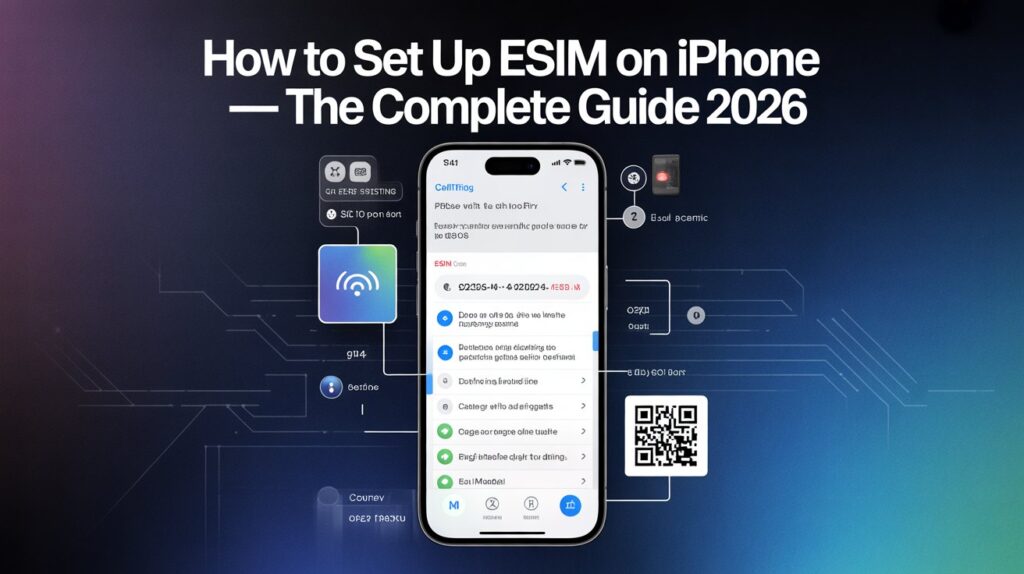
This is probably the most common method. Your carrier emails you a QR code, and you scan it with your iPhone camera. That’s basically it.
Step-by-step:
- Open your iPhone Camera app
- Point it at the QR code your carrier gave you
- A notification pops up — tap it
- Tap Add Cellular Plan or Continue
- Follow the steps on screen
- Give your plan a label — something like “Personal” or “Work” so you know which is which later
- Tap Done
It usually takes a couple of minutes to activate. The signal bars will appear in the top corner when it’s ready.
One important rule: Each QR code can only be scanned once. Don’t scan it twice, don’t share it with a friend, don’t let it expire unused. Treat it like a one-time password.
Can’t scan the code because it’s on the same phone? That’s a common problem. In that case, save the QR code image to a different device — your laptop, a tablet, even print it on paper — then scan from there.
Alternatively, on iOS 17 or later, you can save the QR code image to your iPhone Photos and scan it from there:
Go to Settings → Cellular → Add eSIM → Use QR Code → Open Photos
Method 3: Enter the Details Manually
No QR code? No problem. You can type everything in by hand.
Your carrier should give you two things: an SM-DP+ Address and an Activation Code. These are lengthy sequences of digits and letters. Copy-paste them if possible — typing them by hand is painful.
Step-by-step:
- Navigate to Settings → Cellular (or Mobile Data).
- Tap Add eSIM
- Select Use QR Code
- At the bottom, tap Enter Details Manually
- Paste or type your SM-DP+ Address
- Paste or type your Activation Code
- Tap Next, then Continue twice
- Wait for the connection to establish
- Tap Done when it finishes
This method is slower. Give it 3 to 5 minutes. If it seems stuck, wait a little longer before assuming something is wrong.
Method 4: Direct App Installation
Some carriers have their own apps. When you buy an eSIM through their app, it can install itself automatically — no QR code, no manual entry.
Just download your carrier’s official app from the App Store, purchase your plan, and follow the in-app instructions. The app talks directly to your iPhone and loads the eSIM in the background.
This is especially common with travel eSIM providers like Airalo, Holafly, Saily, and others. If you’re planning a trip abroad and need a temporary data plan, this is genuinely the easiest way to do it.
Method 5: Convert Your Physical SIM to an eSIM
Already have a physical SIM card? Some carriers let you flip it to an eSIM without changing your plan or number.
Go to Settings → Cellular → Convert to eSIM (if your carrier supports this, the option will appear).
Tap Convert Cellular Plan, confirm, then tap Convert to eSIM.
Your physical SIM will stop working. Your eSIM takes its place — same number, same plan, no store visit needed. This is a one-way process, so make sure you actually want to do it before confirming.
Setting Up Dual SIM — Two Numbers, One iPhone
This is where iPhones get really powerful. You can run two separate plans at the same time.
Perhaps you would prefer to use one number for business calls and another for personal ones. Maybe you’re traveling and want to keep your home number active while using a cheap local data plan. Both are totally possible.
After adding your second eSIM (or keeping your physical SIM alongside an eSIM), your iPhone will ask you to set some preferences.
Here’s what each setting means:
- Default Voice Line — which number people hear when you call them
- Default Data Line — which plan your iPhone uses for mobile data
- Default for iMessage & FaceTime — which number is linked to your Apple messaging
You can change all of these at any time. Go to Settings → Cellular and tap on each line to adjust.
A tip for travelers: When you add a travel eSIM, keep your home plan active but set your new eSIM as the data line. That way, people can still call and text your home number, but your data runs on the cheaper local plan. Much better than paying scary roaming fees.
Labeling and Managing Your eSIMs
Once you have more than one line, labeling them properly saves a lot of confusion.
Your iPhone will suggest names like “Primary” and “Secondary,” but you can change these to anything you like — “Home,” “Work,” “Spain Trip,” “Data Only.”
To rename a line:
- Go to Settings → Cellular
- Tap the line you want to rename
- Tap the name field and type whatever makes sense to you
You can also toggle lines on or off here. If you come home from a trip and don’t need your travel eSIM running, just turn it off — you don’t have to delete it. It stays saved on your phone for next time.
Using eSIM When You Travel Internationally
This is honestly one of the best things about eSIM. No more hunting for a SIM card kiosk at a foreign airport. No more paying your home carrier $15 a day just to check Instagram.
Before your flight:
- Choose a travel eSIM provider — Airalo, Holafly, Saily, and Truely are popular ones
- Pick a plan for your destination — prices start around $4 for basic plans
- Install the eSIM before you leave home while on Wi-Fi
- Label it clearly so you know which plan it is
When you land:
- Go to Settings → Cellular
- Turn on your travel eSIM
- Set it as your Data line
- Turn on Data Roaming for that line
You’ll be online before your luggage even arrives at baggage claim.
One thing to watch: Some plans throttle your speed after a certain daily limit, even if they say “unlimited.” Always read the fine print before buying.
How to Handle a Non-Working eSIM
It happens. Here’s how to work through the most common problems.
Problem: eSIM won’t activate
- Make sure you’re connected to Wi-Fi
- Turn Airplane Mode on, wait 10 seconds, turn it back off
- Restart your iPhone
- Check if your iOS is updated
Problem: No signal after activation
- Open Settings → Cellular and make sure your new plan is toggled ON
- Check that Data Roaming is enabled if you’re in another country
- Look for a carrier update: Settings → General → About — if there’s a carrier update, a prompt will appear
Problem: QR code won’t scan
- Clean your camera lens (seriously, this helps)
- Try better lighting
- Screenshot the code and scan it from Photos instead
Problem: eSIM is active but no data
- Go to Settings → Cellular → Cellular Data and make sure the correct plan is selected
- Tap Cellular Data Options and confirm Data Roaming is on if needed
Still stuck? Call your carrier. Give them your IMEI and EID numbers — they’re both under Settings → General → About. The carrier can force-activate your plan from their end.
Is eSIM Safe? What About Security?
Yes — and honestly, eSIM is more secure than a physical SIM in several ways.
A thief who grabs your phone can’t pull out a physical SIM and pop it into another device. The eSIM stays locked inside your iPhone. If your phone is lost or stolen, you can report it to your carrier and have the eSIM remotely deactivated.
eSIM technology uses the same encryption standards as physical SIM cards. The profile that loads onto your phone is sent over a secure, encrypted connection. No one can intercept it and copy it.
The one risk worth knowing about: SIM-swap fraud (where someone tricks a carrier into moving your number to their phone) can happen with eSIMs too — but it requires social engineering your carrier, not your device. Protect yourself by setting a PIN or passcode on your carrier account.
eSIM vs. Physical SIM — Which Is Better?
| Feature | eSIM | Physical SIM |
| No card to lose | ✅ | ❌ |
| Switch carriers easily | ✅ | ❌ |
| Works for international travel | ✅ | ✅ |
| Can be physically removed | ❌ | ✅ |
| Requires internet to activate | Usually yes | No |
| Eco-friendly | ✅ | ❌ |
| Max active lines on iPhone | 2 | 1 (in most markets) |
Final Words
eSIM started as a tech-geek thing. Now it’s just… the way phones work.
If you’re on an older iPhone and haven’t tried it, there’s never been a better time. The setup takes less time than making a cup of tea. And once you feel what it’s like to land in a foreign country and instantly have data — without hunting for a SIM shop — you’ll wonder why you waited.
The small bit of setup time pays off every single time you travel, every time you switch carriers, and every time you don’t have to dig out a paperclip to open a SIM tray.
Give it a shot. You’ll be glad you did.
FAQs
Q1: Can I use eSIM on an iPhone that’s still locked to a carrier?
No. A carrier-locked iPhone can only use eSIMs from that same carrier. You’ll need to get your phone unlocked first — contact your carrier and ask them to remove the lock.
Q2: How many eSIMs can I store on my iPhone?
You can store 8 or more eSIM profiles on most iPhones. However, only 2 can be active at the same time.
Q3: Will setting up an eSIM cancel my old plan?
Only if you’re doing a Quick Transfer from another iPhone — that deactivates the old SIM automatically. If you’re adding a new eSIM, your old plan stays untouched unless you manually turn it off.
Q4: Can I use eSIM and a physical SIM card at the same time?
Yes! On most iPhones (except US-model iPhone 14 and newer), you can run both simultaneously. This is called Dual SIM.
Q5: Does eSIM work for emergency calls?
Yes, absolutely. Your iPhone will use whichever line has the best signal for emergency calls, regardless of which line you’ve set as default.
Q6: Can I delete an eSIM from my iPhone?
Yes. Go to Settings → Cellular → tap the plan → Remove Cellular Plan. But be careful — some eSIM plans can’t be reinstalled once deleted. Check with your provider before removing.
Q7: My QR code expired. What do I do?
Contact your carrier or eSIM provider and ask for a new QR code. Most will issue a replacement with no problem.
Q8: Does eSIM work in all countries?
eSIM works in most countries, but not all carriers in every country support it. Check with your eSIM provider before you travel to confirm coverage at your destination.
Q9: Can I hotspot from an eSIM?
Yes. Most eSIM plans support Personal Hotspot, letting you share your data with laptops or other devices. A few budget travel plans limit or disable hotspot — check your plan’s terms.
Q10: What’s the difference between an eSIM plan and my main carrier plan?
Nothing technical — both connect you to a mobile network. The difference is just which carrier you’re using and what you’re paying for.
Q11: Can I switch back to a physical SIM after using eSIM?
If your iPhone still has a SIM tray (most non-US models do), you can insert a physical SIM anytime. But if you converted your physical SIM to an eSIM, you’d need to get a new physical SIM from your carrier.
Q12: Why does my eSIM say “No Service” even after activation?
This usually means the network hasn’t finished provisioning your account. Wait 5 minutes, toggle Airplane Mode on and off, then restart your phone. If the problem persists, call your carrier.
Q13: Is eSIM setup different on iPhone 16 compared to iPhone 12?
The process is essentially the same across all eSIM-compatible iPhones. The main difference is that US-model iPhone 14 and later don’t have a physical SIM tray, so eSIM is your only option.
Q14: Can two eSIMs from different carriers work at the same time?
Yes. You can have plans from two completely different carriers active simultaneously on most iPhones. One handles your calls, the other handles data — or however you want to split it.
Q15: Do eSIM plans cost more than regular plans?
Not typically. Many carriers charge the same price for eSIM and physical SIM plans. Travel eSIM plans from third-party providers are often cheaper than roaming with your home carrier — sometimes dramatically so.
Keep creating, innovating, and inspiring with Content Ideators every day.
