
How To Change Colors On Google Calendar: You open your Google Calendar. Everything is the same shade of blue. Work stuff. Gym sessions. Doctor appointments. A birthday party. All blue. All blending into one giant blur.
Sound familiar? Here’s the thing — your calendar doesn’t have to look like a corporate spreadsheet from 2005. In just a few clicks, you can give every event, every category, and every calendar its own color. When you do that, your brain starts reading your week like a map instead of a long list. It’s genuinely one of the easiest wins you can make for your daily life.
This guide covers everything. Desktop. iPhone. Android. Custom hex codes. Dark mode. Individual event colors. We’re not skipping a thing.
Quick Facts Table: Google Calendar Color Feature at a Glance
| Feature | Details |
|---|---|
| Platform | Google Calendar (Web, Android, iOS) |
| Colors available by default | 24 preset colors |
| Custom colors (hex codes) | Yes — available on desktop |
| Change a whole calendar’s color | Yes |
| Change one single event’s color | Yes |
| Dark mode support | Yes — web (2024 update), Android, iOS |
| Color visible to others | Only if they have edit access |
| Does color sync across devices | Yes — tied to your Google Account |
| Third-party color extensions | Yes — available via Chrome Web Store |
| Who can use this feature | Anyone with a Google Account — free |
Why Changing Calendar Colors Actually Matters
Before we jump into steps, let’s talk about why you’d even bother.
Your brain processes color about 60,000 times faster than it reads text. That’s not a made-up stat — that’s color psychology, studied seriously by researchers for decades.
When your work events are blue, your gym sessions are green, and your family stuff is orange — you don’t need to read a single word to understand your week. Your eyes just scan and your brain instantly knows.
Here’s what this does for you in practice:
- You spot conflicts faster. Two colors clashing on Tuesday morning? You’ve got a problem.
- You feel less overwhelmed. Seeing a clean, color-organized calendar actually lowers your stress. It’s not magic — it’s visual clarity.
- You stop missing things. Important stuff can have a bold red. Everything else can be softer. Nothing gets lost.
- You build better habits. When you can see how much green (personal time) you have versus blue (work), you start making better decisions.
This isn’t about making your calendar pretty — although that’s a bonus. It’s about making your schedule easier to understand at a single glance.
Two Levels of Color Changing in Google Calendar
Here’s something a lot of people miss — there are actually two different ways to assign colors in Google Calendar. They work differently and serve different purposes.
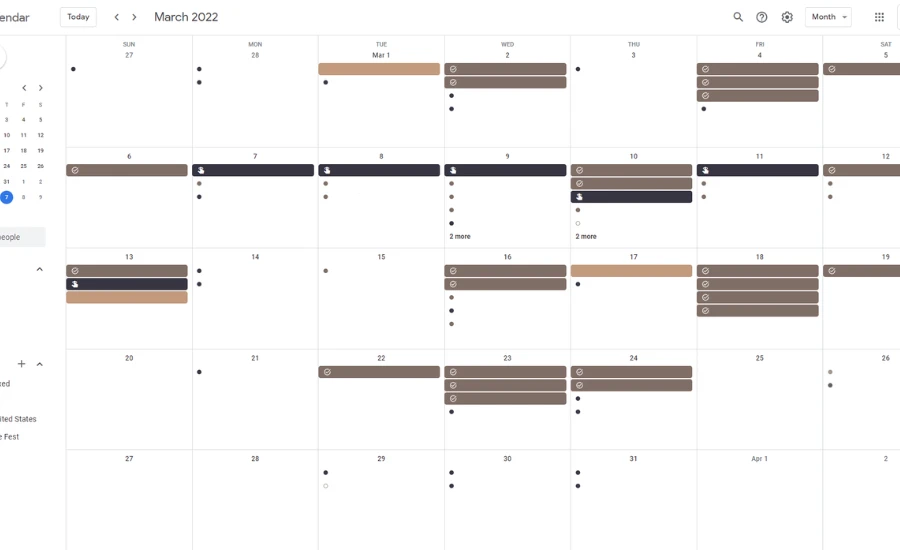
Level 1: Changing the whole calendar’s color. Think of Google Calendar as a container of multiple separate calendars inside one app. You might have “My Calendar,” “Work,” “Family,” and “Holidays.” Each one can get its own color. Every event inside that calendar automatically takes on that color. It’s the fastest way to stay organized.
Level 2: Changing one specific event’s color. Even inside a calendar that’s already blue, you can make one individual event green, red, or any other color. This is for when something extra important or different needs to stand out from the rest.
Both methods work on desktop and mobile. We’ll cover them all.
How To Change Colors On Google Calendar on Desktop (Step by Step)
This is the most common thing people want to do. Here’s exactly how it worksStep 1: Open your browser and head to calendar.google.com. Log into your Google account if you haven’t already.
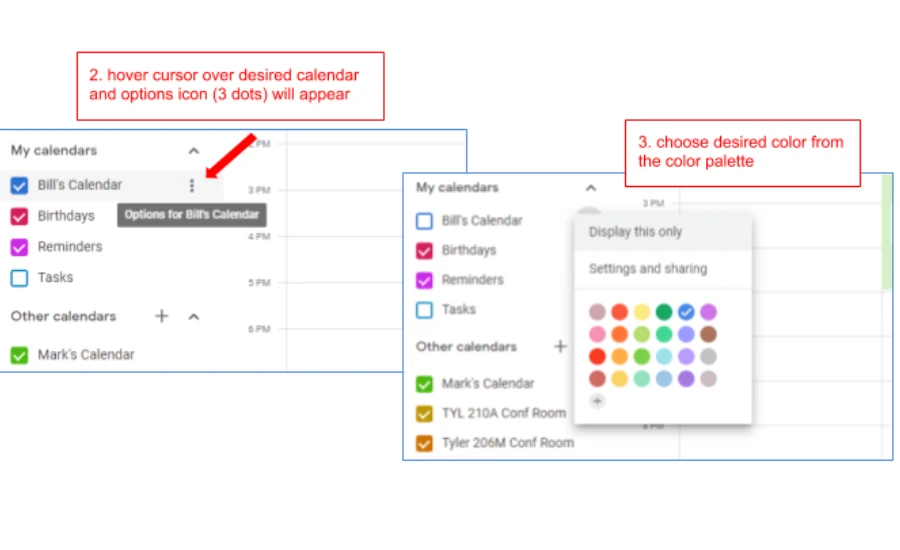
Step 2: Look at the left side of the screen. You’ll see a list under “My calendars” — usually things like your name, Birthdays, and Reminders.
Step 3: Hover your mouse over the calendar name you want to change. A three-dot menu icon (⋮) will appear right next to it.
Step 4: Click those three dots. A small dropdown menu opens. You’ll see a row of colored circles right there.
Step 5: Click any color circle to apply it instantly. The whole calendar changes color immediately — every event in it updates too.
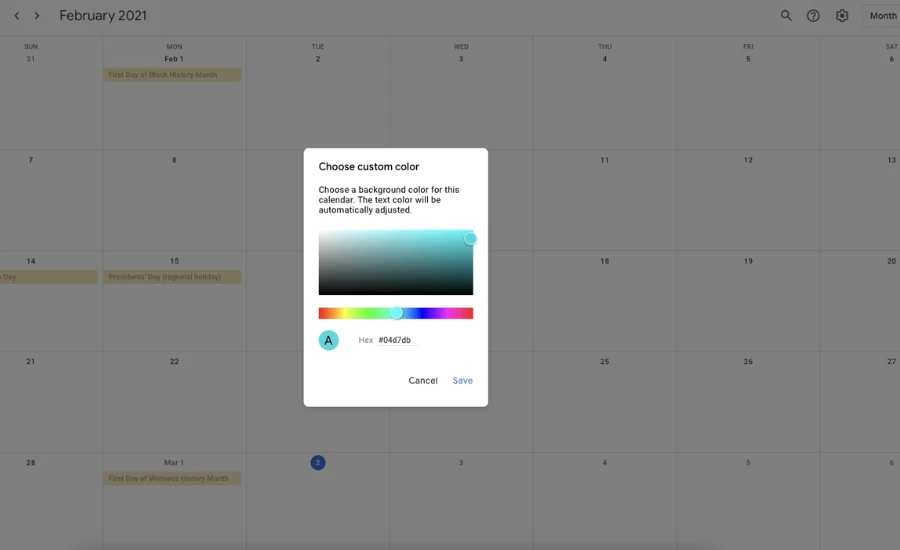
Step 6 (Optional): Want a color that’s not in the 24 defaults? At the bottom of the color circles, there’s a small “+” icon labeled “Add custom color.” Click that and a color picker opens. You can type in a hex code (more on that below) or drag the selector to any color you love.
That’s it. Your calendar is now color-coded. Go repeat this for every calendar in your list.
How to Change a Single Event’s Color on Desktop
Sometimes one event needs to pop. Here’s how to give just one event its own color without touching the rest of the calendar.
Step 1: Click on any event on your calendar to open it.
Step 2: At the top of the event popup, click the pencil icon to open the full edit view.
Step 3: Just below the event title, you’ll spot a small colored circle (it matches your calendar’s current color). Click that circle.
Step 4: A small color palette appears. Pick any color from the options.
Step 5: Hit Save in the top right corner.
That single event now has its own color. Everything else in the calendar stays the same. Only that one event stands out.
How To Change Colors On Google Calendar iPhone
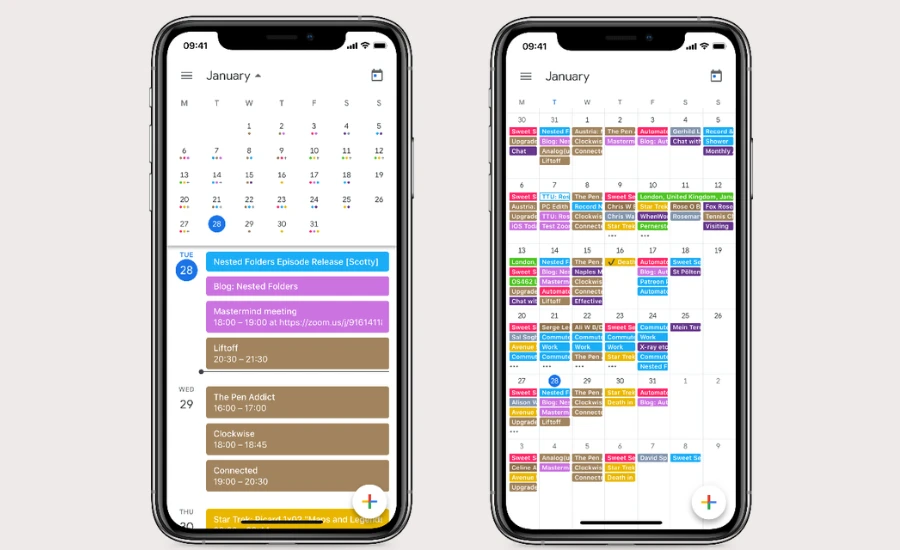
Got an iPhone? The steps are slightly different but just as easy.
Step 1: Open the Google Calendar app on your iPhone.
Step 2: Tap the three horizontal lines in the top left corner (this is the hamburger menu).
Step 3: Scroll down and tap Settings.
Step 4: Under your account, you’ll see a list of your calendars. Tap the name of the calendar you want to change.
Step 5: At the top of that calendar’s settings page, you’ll see the current color name. Tap it.
Step 6: A list of color options appears. Tap your preferred one.
Step 7: Hit the back arrow or navigate away — the change saves automatically.
One important note for iPhone users: you cannot enter custom hex codes in the iOS app. You’re limited to the preset color options. For custom colors, you’d need to do that on a desktop browser.
How To Change Colors On Google Calendar Android
Android users, here’s your version:
Step 1: Open the Google Calendar app on your Android phone.
Step 2: Tap the three horizontal lines in the top left corner to open the menu.
Step 3: Tap Settings, then tap the calendar you want to update.
Step 4: Tap Calendar color at the top of the page.
Step 5: Choose your color from the list that appears.
Step 6: Tap Save in the bottom right corner.
The change syncs instantly to all devices connected to your Google account. Open the app on your phone, the web, or anywhere else — the color will match.
Android also limits you to preset colors within the app. Custom hex codes need to be added through a browser on desktop.
What Are Hex Codes and How to Use Them
A hex code is a six-character code that represents a specific color precisely. Every color you can imagine has one. They start with a # symbol, followed by six letters and numbers.
Some quick examples:
#FF5733— a bright orange-red#3498DB— a clean sky blue#2ECC71— a fresh green#9B59B6— a soft purple#F39C12— a warm amber
To add a custom hex color on desktop:
- Hover over your calendar name in the left panel
- Click the three dots (⋮)
- Click the “+” icon at the bottom of the color picker
- A small box appears — type your hex code into the field
- Click Save
Your calendar now has a color that no default option could give you. This is great if you want your calendar to match your brand colors, your aesthetic preferences, or just a specific vibe you’re going for.
Where to find hex codes? Websites like Coolors.co, htmlcolorcodes.com, and color-hex.com let you browse thousands of color palettes and copy exact hex codes in one click.
Popular Color-Coding Systems People Actually Use
Need inspiration? Here are some real systems people love:
Table: Color-Coding Ideas by Life Category
| Category | Suggested Color | Reasoning |
|---|---|---|
| Work meetings | Blue (#3B82F6) | Calm, professional, easy to spot |
| Personal appointments | Green (#22C55E) | Growth, balance, personal time |
| Urgent / Deadlines | Red (#EF4444) | Attention-grabbing, signals priority |
| Family events | Orange (#F97316) | Warm, social, energetic |
| Health & gym | Purple (#A855F7) | Body-focused, distinct from work |
| Study / Learning | Yellow (#EAB308) | Bright, stimulating for the mind |
| Finances / Bills | Teal (#14B8A6) | Organized, practical, stands apart |
| Travel | Pink (#EC4899) | Fun, exciting, memorable |
Pick the categories that match your life. You don’t have to use all of them. Even using three or four consistent colors will change how you experience your week.
How to Change Background Theme: Light Mode and Dark Mode
Here’s something separate from event colors — you can also change the overall look of Google Calendar between light and dark backgrounds.
On Desktop (Web):
- Open Google Calendar in your browser
- Click the gear/settings icon in the top right corner
- Click “Appearance” from the dropdown
- Choose Light, Dark, or Device default
The “Device default” option makes your calendar automatically match your computer’s light or dark mode setting.
Important: When you’re in Dark mode, you cannot change the event color set. That feature is only available in Light mode. If you want to customize event color styles, switch to Light mode first.
On Android:
- Tap the three lines in the top left
- Tap Settings → General
- Tap Theme
- Choose Dark, Light, or System default
On iPhone:
There’s no dedicated dark mode switch in the Google Calendar iOS app. It simply follows your iPhone’s system-wide appearance. Go to Settings → Display & Brightness → Dark on your iPhone, and Google Calendar will follow automatically.
Dark mode is great for anyone who plans their schedule at night or in low-light rooms. It reduces eye strain and on OLED screens, it can even save battery life.
Getting More Colors: Chrome Extensions
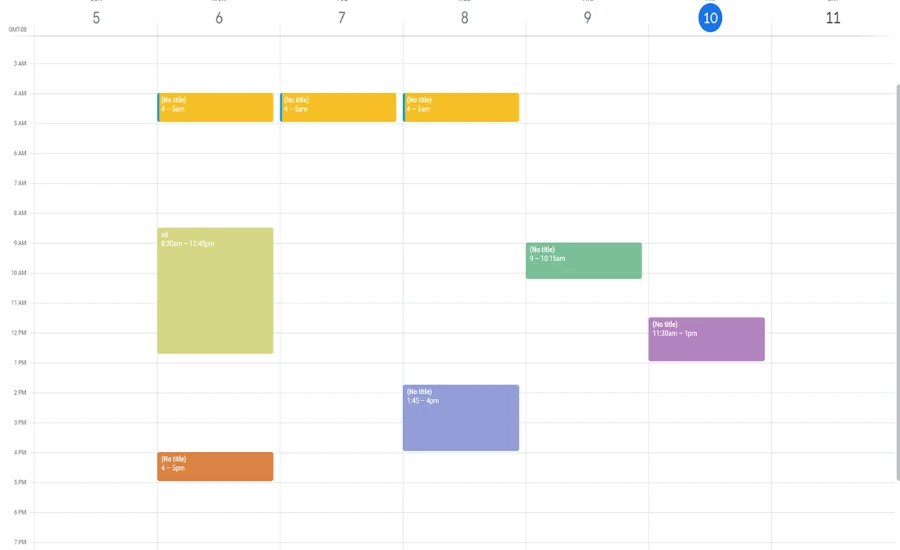
Google Calendar’s default 24 colors are good. But if you want more — and some people really do — Chrome extensions can help.
“More Colors for Calendar” is a popular free Chrome extension. After installing it, you can right-click any event on your calendar and access a much larger color picker. You can enter any hex code you want for individual events.
“Calendar Color” is another option. It lets you assign custom labels and categories to Google’s existing color palette so you remember what each color means. It also has a built-in focus timer that works directly from calendar events, which is a nice bonus.
“CalPalette” lets you add unlimited custom hex colors to events and save them for repeated use.
To install any extension: open the Chrome Web Store, search for the extension name, click “Add to Chrome,” and confirm. These only work in Chrome browsers on desktop — not on mobile apps.
Sharing Calendars: One Thing to Know About Colors
If you share your Google Calendar with someone else — a partner, a colleague, a team — here’s something important:
Your personal event colors are for your eyes only.
When you change an event to red because it’s urgent to you, the person you shared the calendar with won’t see red. They’ll see the calendar’s default color. Per-event color changes are a personal preference that only you see.
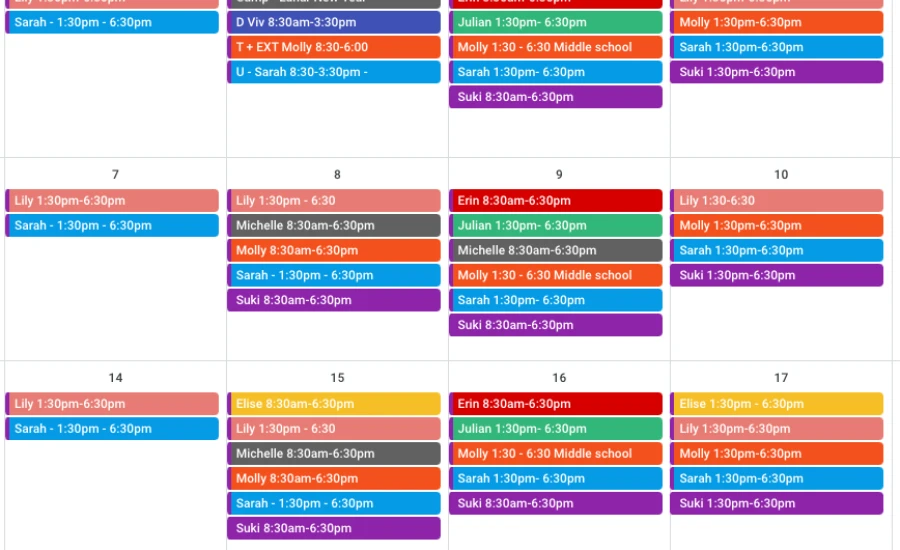
The exception: if someone has “Make changes and manage sharing” access to your calendar, they can see and edit the color labels you’ve set.
If you want a color system that your whole team sees the same way, the best approach is to create separate calendars (one for each project or category) and assign colors to the whole calendar. Those calendar-level colors show up consistently for everyone who has access.
Common Mistakes to Avoid
Using too many colors. If you assign a different color to every single event, nothing stands out. Your brain can’t form patterns. Stick to 5–7 categories maximum.
Being inconsistent. A color system only helps if you use it every time. If blue sometimes means work and sometimes means gym, the whole system breaks down. Keep it simple and stick to it.
Forgetting to check on mobile. Colors can look slightly different on your phone screen versus your laptop. After setting up your palette, open your calendar on all your devices to make sure everything looks right.
Picking colors that are hard to read. Some of Google’s default colors, like “Banana” yellow, are tricky to read in the week view where events are small. Test your choices in the week view before committing.
Using hex codes only on mobile. Remember, custom hex codes can only be entered on desktop in a browser. Don’t go hunting for that feature in the app — it’s not there.
Final Words
Your Google Calendar should work for you — not the other way around.
Right now, it might feel like a giant list of things you have to do. But with the right colors assigned to the right parts of your life, it starts looking more like a picture of your week. You can see where your time is going. You can see when things are piling up. You can see when you haven’t blocked out any time for yourself.
Color is one of the fastest, easiest, and most underrated tools for staying organized. And the best part? It takes about five minutes to set up. You don’t need a paid app. You don’t need special knowledge. You just need to hover, click, and choose.
Start with your main calendar. Give it a color that feels like you. Then slowly build out from there. Within a week, you’ll wonder how you ever survived with everything being the same shade of blue.
FAQ — Your Real Questions Answered
Q1: Can I change the color of just one event without affecting the whole calendar?
Yes, absolutely. Open the event, click the edit (pencil) icon, click the colored circle near the title, pick a new color, and save. Only that one event changes. The rest of the calendar stays exactly as it was.
Q2: How many color options does Google Calendar give me by default?
There are 24 preset color options. On desktop, you can also add custom colors using hex codes by clicking the “+” icon in the color picker panel.
Q3: Can I use hex codes on my phone?
Not directly. The Google Calendar mobile app (both iPhone and Android) only shows preset colors. To use a custom hex code, you need to open Google Calendar in a browser on your computer.
Q4: Will my color changes show up for people I share my calendar with?
Calendar-level colors (changing the whole calendar) are visible to people who access your shared calendar. Individual event color changes are personal — only you see them, unless the other person has full edit and management access.
Q5: Does Google Calendar have dark mode?
Yes. On desktop, go to Settings (gear icon) → Appearance → select Dark. On Android, go to Settings → General → Theme → Dark. On iPhone, it follows your device’s system setting automatically.
Q6: Can I use dark mode and custom event colors at the same time?
Partially. In dark mode, the “event color set” styling option is disabled. But you can still assign individual colors to calendars and events. You just can’t change the overall color style preset when the background is dark.
Q7: What’s the difference between changing a calendar’s color and changing an event’s color?
A calendar color applies to everything inside that calendar automatically. An event color overrides only that one specific event. Think of it as the calendar color being the rule and the event color being an exception.
Q8: Is there a way to get more than 24 colors without extensions?
Yes — by using custom hex codes on desktop. This gives you access to literally any color that exists. Just click the “+” at the bottom of the color picker and type in your hex code.
Q9: If I change a recurring event’s color, does it change all occurrences?
It depends on what you choose. When you edit a recurring event, Google Calendar asks if you want to change just that one occurrence, this and following events, or all events. The same applies to color changes. Choose “This event” to only change the one you’re editing.
Q10: Why can’t I find the color picker on my iPhone app?
Go to the hamburger menu (three lines) → Settings → tap your calendar name → tap the color name at the top. It’s a little hidden but it’s there. Just make sure you’re tapping the calendar name in Settings, not just tapping the colored circle next to it in the main menu.
Q11: Can I sync color changes across multiple devices?
Yes. Color changes sync automatically through your Google Account. Change a color on your laptop and it appears on your phone within moments — as long as both devices are connected to the internet.
Q12: Are there Chrome extensions that add more colors to Google Calendar?
Yes. “More Colors for Calendar,” “Calendar Color,” and “CalPalette” are popular options on the Chrome Web Store. They let you use custom hex codes on individual events and save your own color palettes. They only work in Chrome on desktop.
Q13: Can I change the background color of the whole Google Calendar interface?
Not in the traditional sense. You can switch between Light mode (white background) and Dark mode (dark background) through the Appearance settings. But you can’t make the entire interface a custom color like pink or yellow — that level of customization isn’t built in.
Keep creating, innovating, and inspiring with Content Ideators every day.
